Install NASP Rewards to see Customer Rewards in the POS editor. No smart grid tile is needed.
What staff can redeem
POS uses your active rewards:
- Store Credit: whole conversion units within the customer’s balance.
- Free Product, Amount off products, Amount off order, Buy X get Y and Free shipping: discount codes at a fixed points cost.
Each discount code belongs to the selected customer and can be used once. Store Credit is added to the customer’s Shopify account.
Eligibility and VIP prices apply. Enough points alone do not unlock restricted offers. Free Product covers one unit of the exact variant.
Turn on Customer Rewards
-
In Shopify Admin, under Sales channels, choose Point of Sale.
Choose Settings.
Under Customization, choose POS app.
-
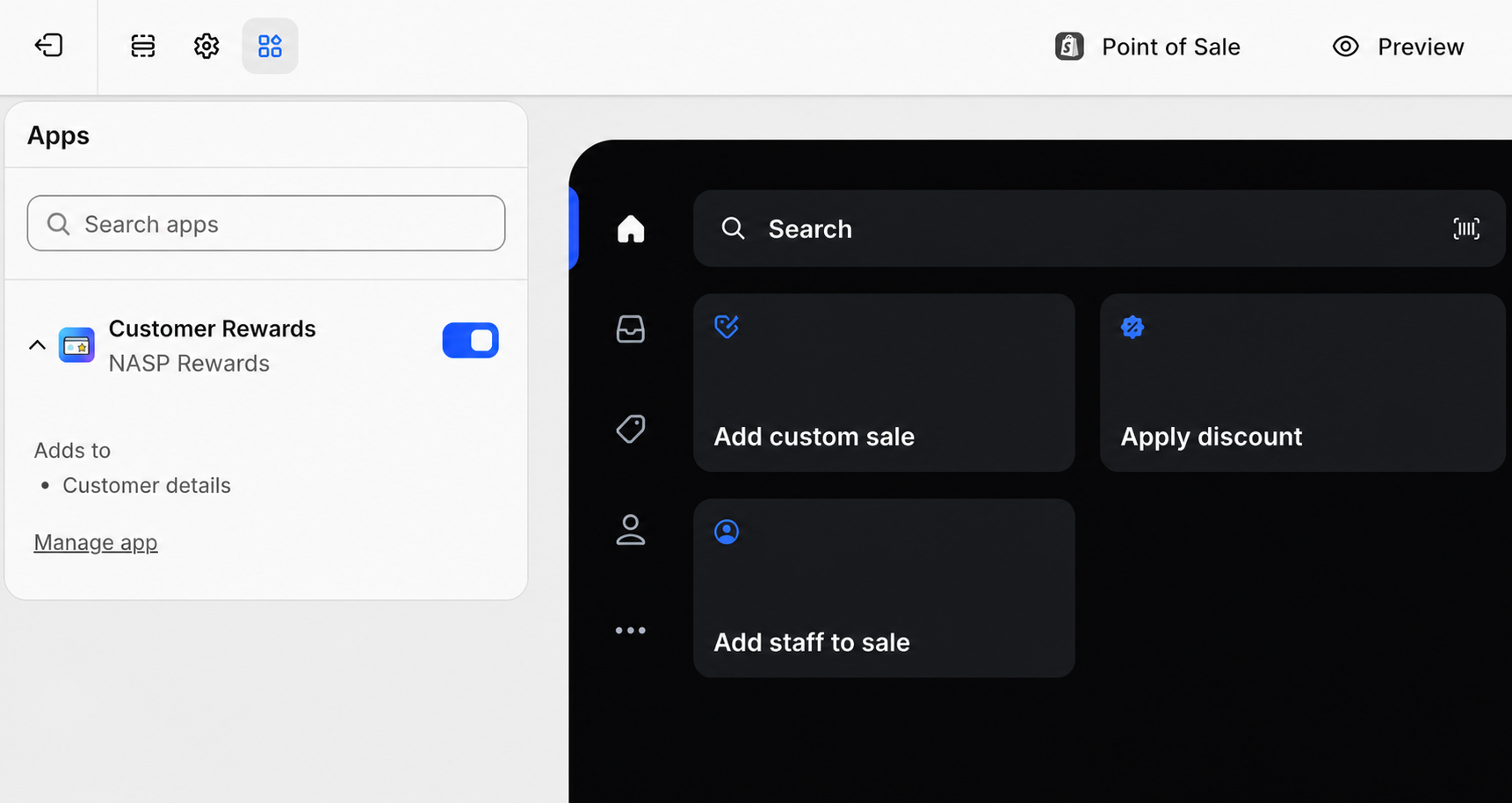
In the POS editor toolbar, choose Apps—the four-squares button.
-
Find Customer Rewards by NASP Rewards and turn it on.
Choose Save.
View a customer’s balance
- Add or select the customer in the Shopify POS cart.
- Open the customer’s details.
- Find Customer Rewards for the balance and Redeem, shown when an active reward is affordable.
- Refresh if the balance changed.
Viewing creates no loyalty account or points. Customers without points show zero.
Redeem a reward
-
Choose Redeem in the Customer Rewards block.
-
Check the balance and upcoming expiry, then choose a reward.
-
Choose a Store Credit amount or review the reward's points cost and value.
-
Confirm and wait for the result. Do not close or resubmit while processing.
-
Apply the credit or code as described below.
Store Credit
Choose Done, return to the cart, then Apply store credit. Redeeming points does not apply credit automatically.
Discount rewards
Apply the displayed code at checkout. The cart must meet its product, purchase, destination and combination requirements.
If Redeem is not shown
Redeem is hidden when no active reward is affordable. Check:
- the correct customer is selected;
- at least one redemption rule is active in NASP Rewards; and
- the balance is current—choose the refresh icon if points just changed.
If the block is missing, check installation, enable it and save the POS configuration.
If the result is uncertain
Do not redeem again. Open the reward in Redemptions or its activity link.
- For discounts, NASP Rewards checks the exact code before completing or restoring points. Do not reissue or adjust points during review.
- For Store Credit, check the customer’s Shopify store credit transactions before confirming whether credit was issued or restoring points.
Follow Redemption review.