Customer rewards supports English, Traditional Chinese and Simplified Chinese. It follows the customer’s Shopify language, published through Shopify Markets and Languages.
NASP Rewards creates a Reward content entry in Shopify Metaobjects for each reward. Translate it with Shopify’s free Translate & Adapt app.
Keep your Shopify language setup. No separate language setup is needed in NASP Rewards.
Content to translate
| Category | Content |
|---|---|
| Provided by NASP Rewards | The page heading, buttons, point labels, messages, and help text. Ready in English, Traditional Chinese, and Simplified Chinese. |
| Entered by you | Reward titles, VIP tier names and email subjects/bodies in NASP Rewards; product and collection names and the Rewards menu label in Shopify. Translate the relevant content through Shopify tools. |
Your primary storefront language is the source. English may be the source, a translation or absent. Write in the language shown by the editor.
Missing reward translations can use complete source content. Outdated translations are not considered current.
Use your Shopify language setup
Already published your languages? Skip to Find each reward in Shopify.
For a new multilingual setup:
- In Shopify Admin, go to Settings → Languages and add the languages you want to offer.
- Assign each language to the appropriate Shopify Market and domain, then publish it when its content is ready. Shopify explains this in Assigning domains and languages to markets.
- Install Shopify’s free Translate & Adapt app if it is not already installed.
Create the reward in NASP Rewards. Enter Reward title in the primary language shown.
Find each reward in Shopify
- In Shopify Admin, go to Content → Metaobjects.
- Choose View read only.
- If Shopify shows more than one type of content, use the dropdown to choose Reward content.
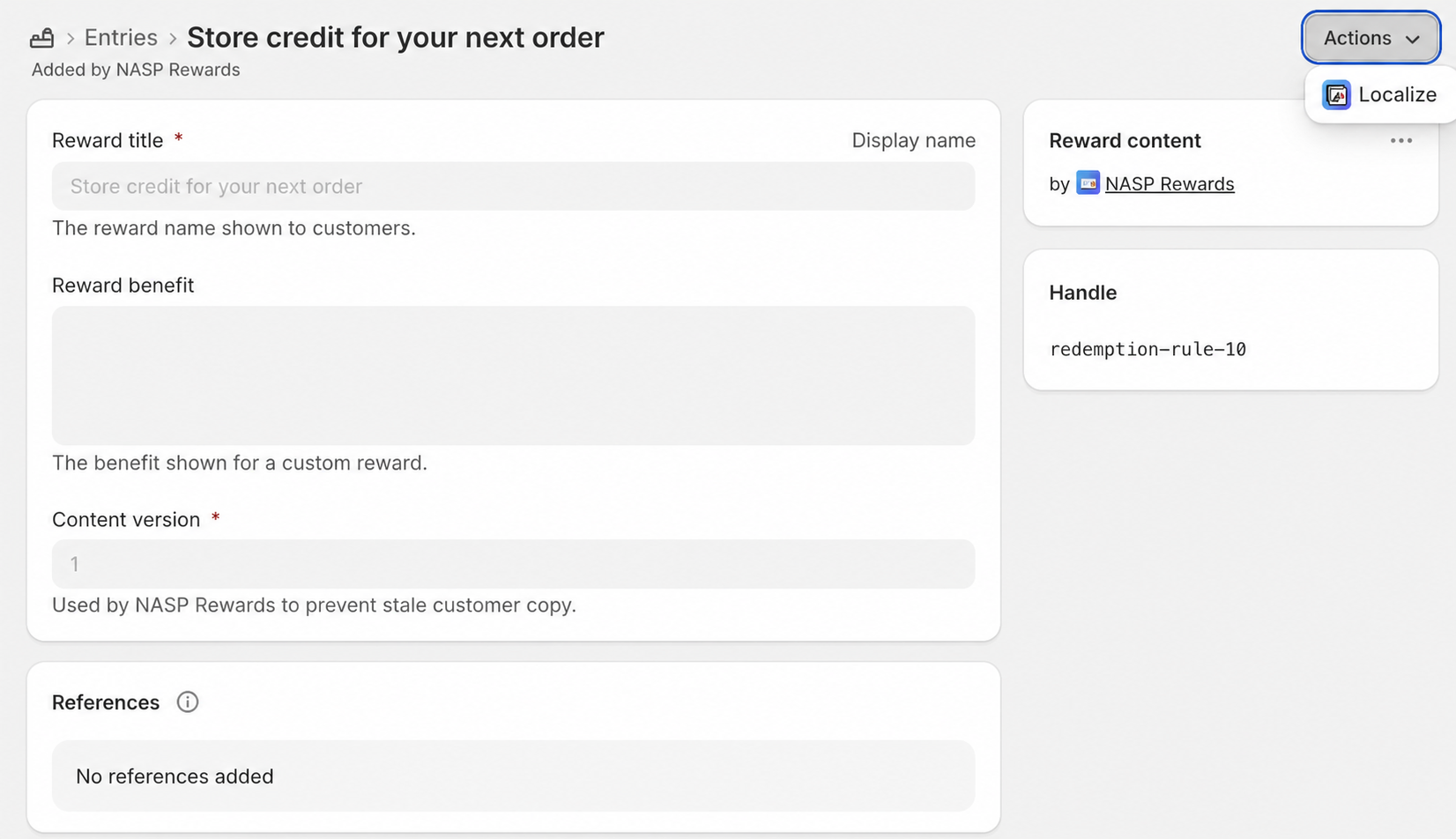
- Open the reward you want to translate.
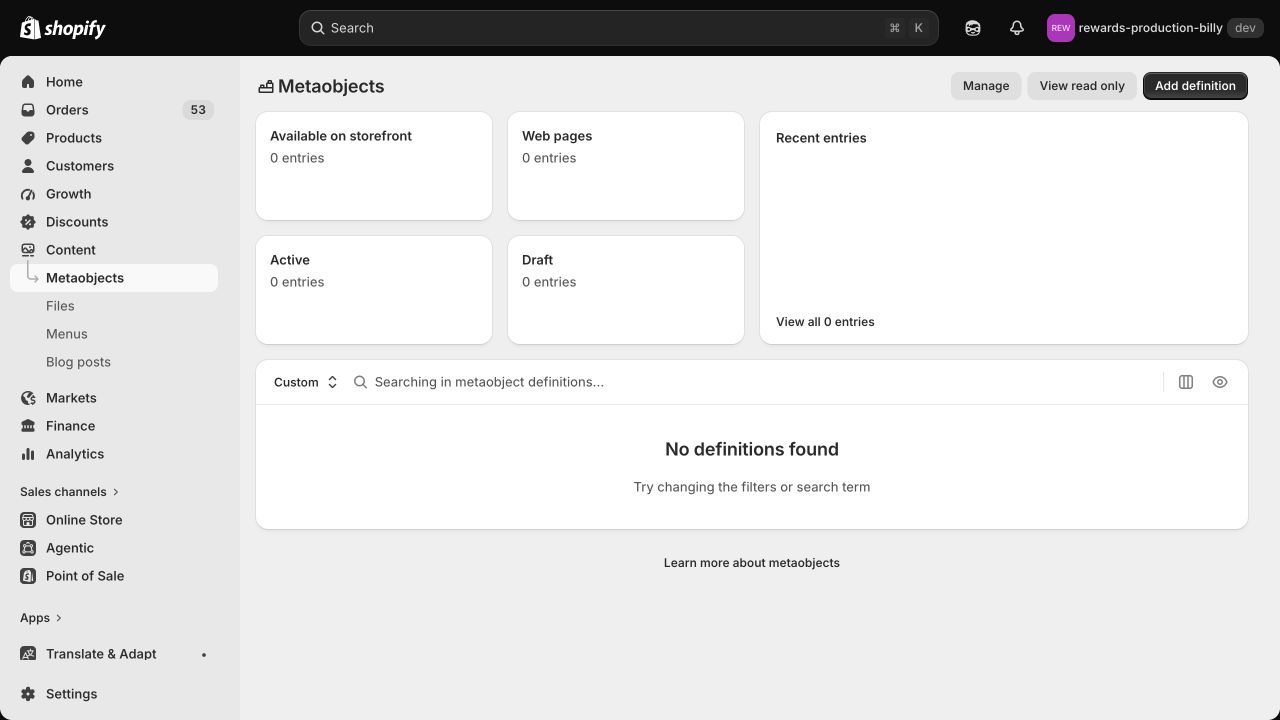
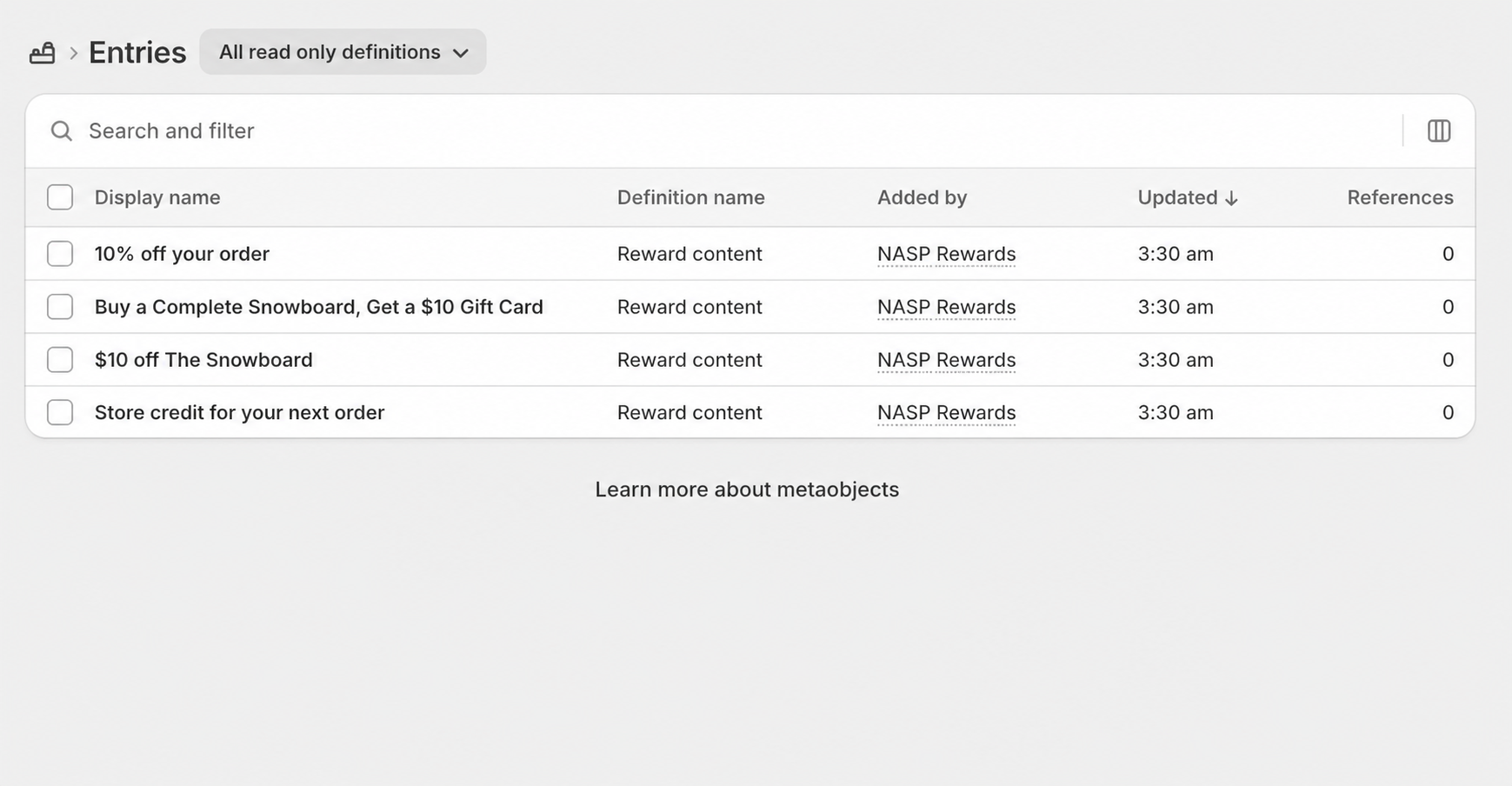
If Translate & Adapt shows no metaobjects, open the reward as above, then choose Actions → Localize.
Open the reward in Translate & Adapt
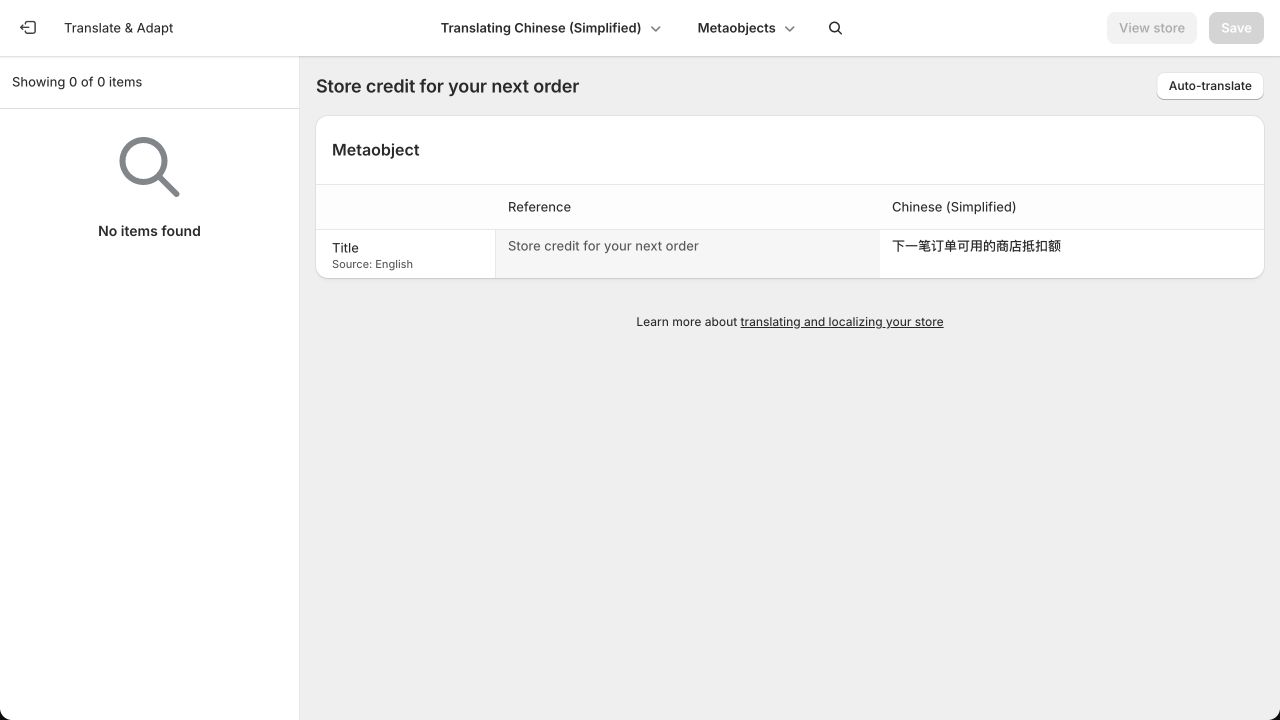
Choose Actions → Localize to open Translate & Adapt. The source title appears beside its translation. Edit the source in NASP Rewards.
Add the other languages
- Choose the language you want to translate into.
- Enter the translated reward title. If your store has an older Custom Reward, translate Customer benefit too.
- Choose Save.
- Repeat for the other active rewards and languages.
Check what customers see
Choose a published language on your storefront, then sign in and open Customer rewards. Check the page and reward titles. Most themes show a language selector when multiple languages are published.
Rewrite each Reward title in the new primary language. Add the old language in Translate & Adapt if still offered. Shopify removes translations for the new primary language; review every reward.
VIP tier names
Enter tier names in the primary language and translate through Translate & Adapt. Renaming preserves membership and history; review translations after source edits.
Customer emails
In Settings → Customer notifications, open an email and choose Translate. Translate subject and body without changing Liquid variable names. Preview and test saved content before activation.
Never-translated fields may use source content. Fix outdated or invalid translations; reopen the editor to recheck warnings.
Changing the primary language does not promote translations or rewrite source. Review reward titles, tier names and emails in the new language. Email starter languages can differ from customer-interface languages.
See Customer notifications for individual emails and supported variables.